Open in Safari
Visit mypeptideapp.com using Safari on your iPhone or iPad. This only works in Safari — Chrome, Firefox, or other browsers don't support installing web apps on iOS.
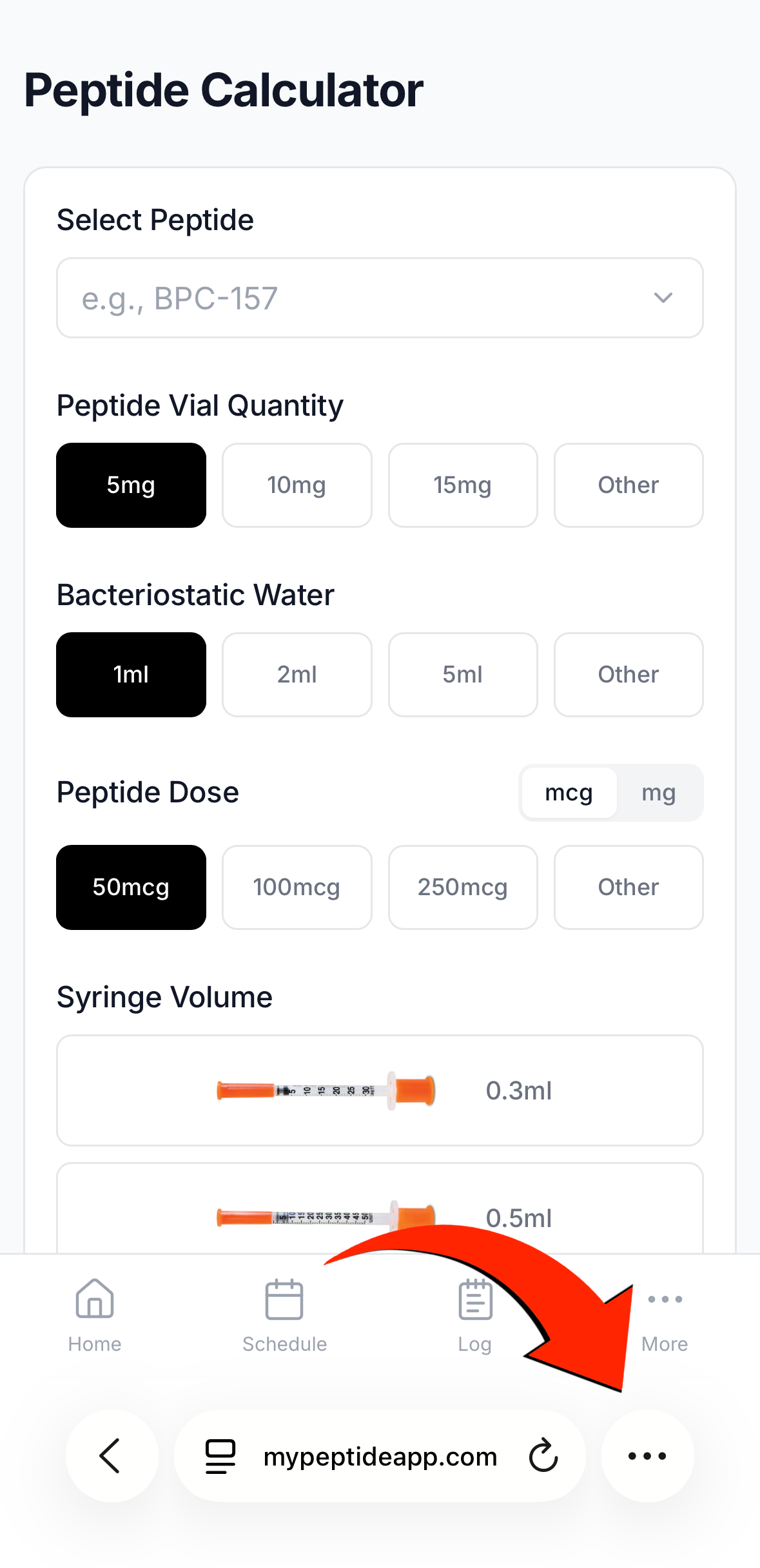
Tap the Share Button
Tap the Share icon at the bottom of the screen — it's the square with an arrow pointing up.
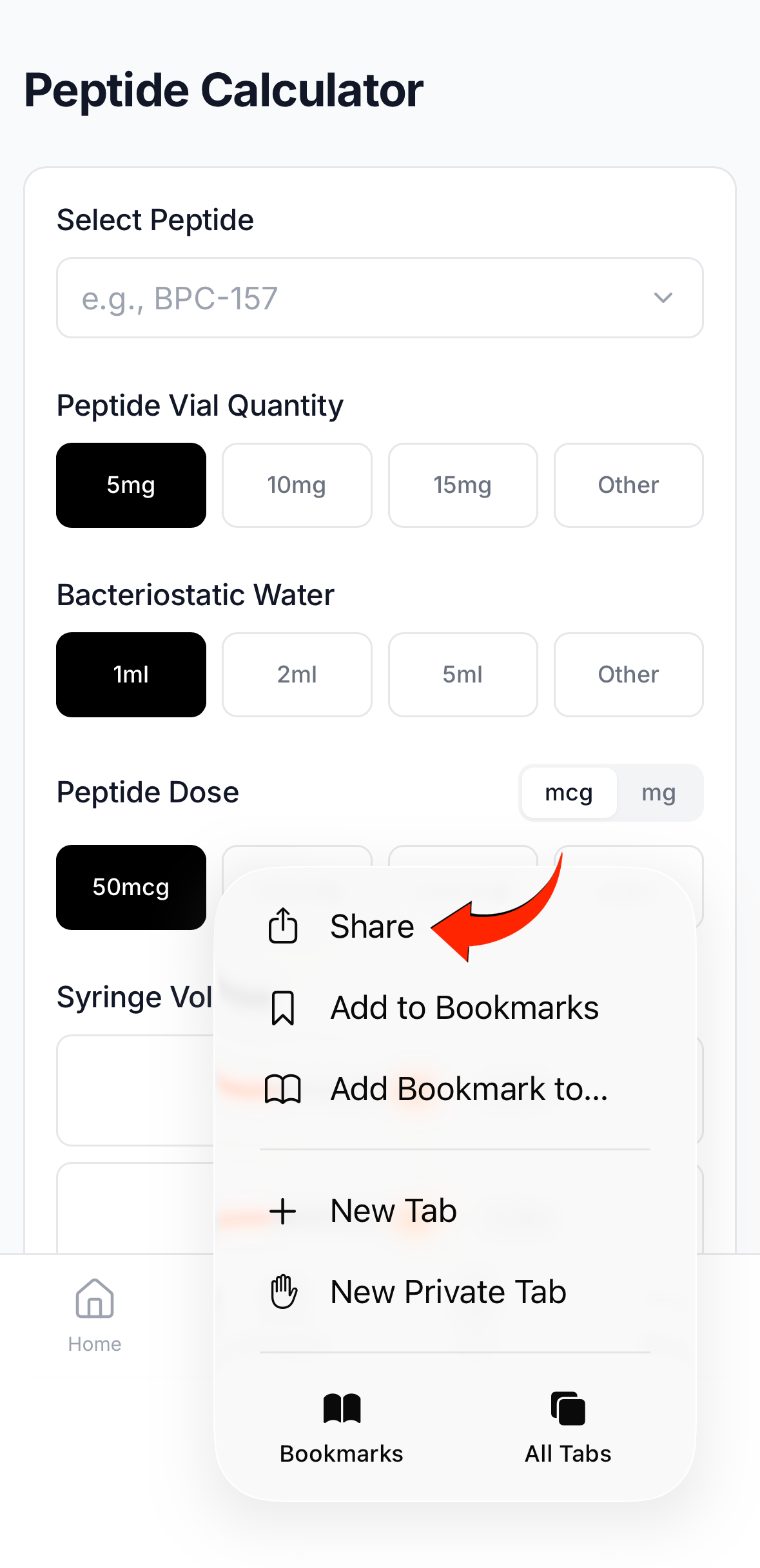
Select "Add to Home Screen"
Scroll down in the share menu until you see "Add to Home Screen" and tap it. If you don't see it, scroll further — it's sometimes below the fold.
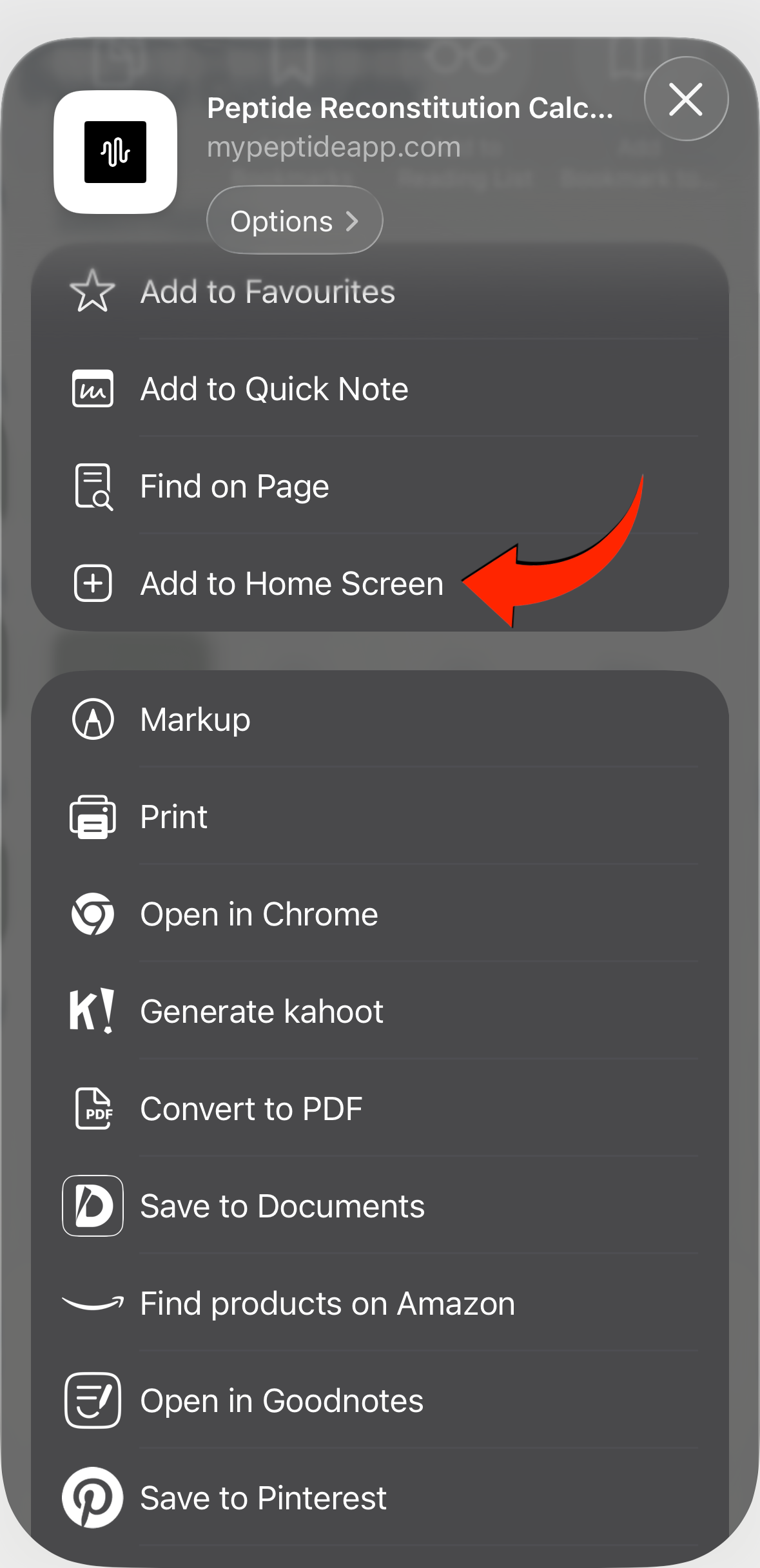
Tap "Add" to Confirm
Tap "Add" in the top-right corner. MyPeptideApp will now appear on your home screen — ready to launch like any other app.
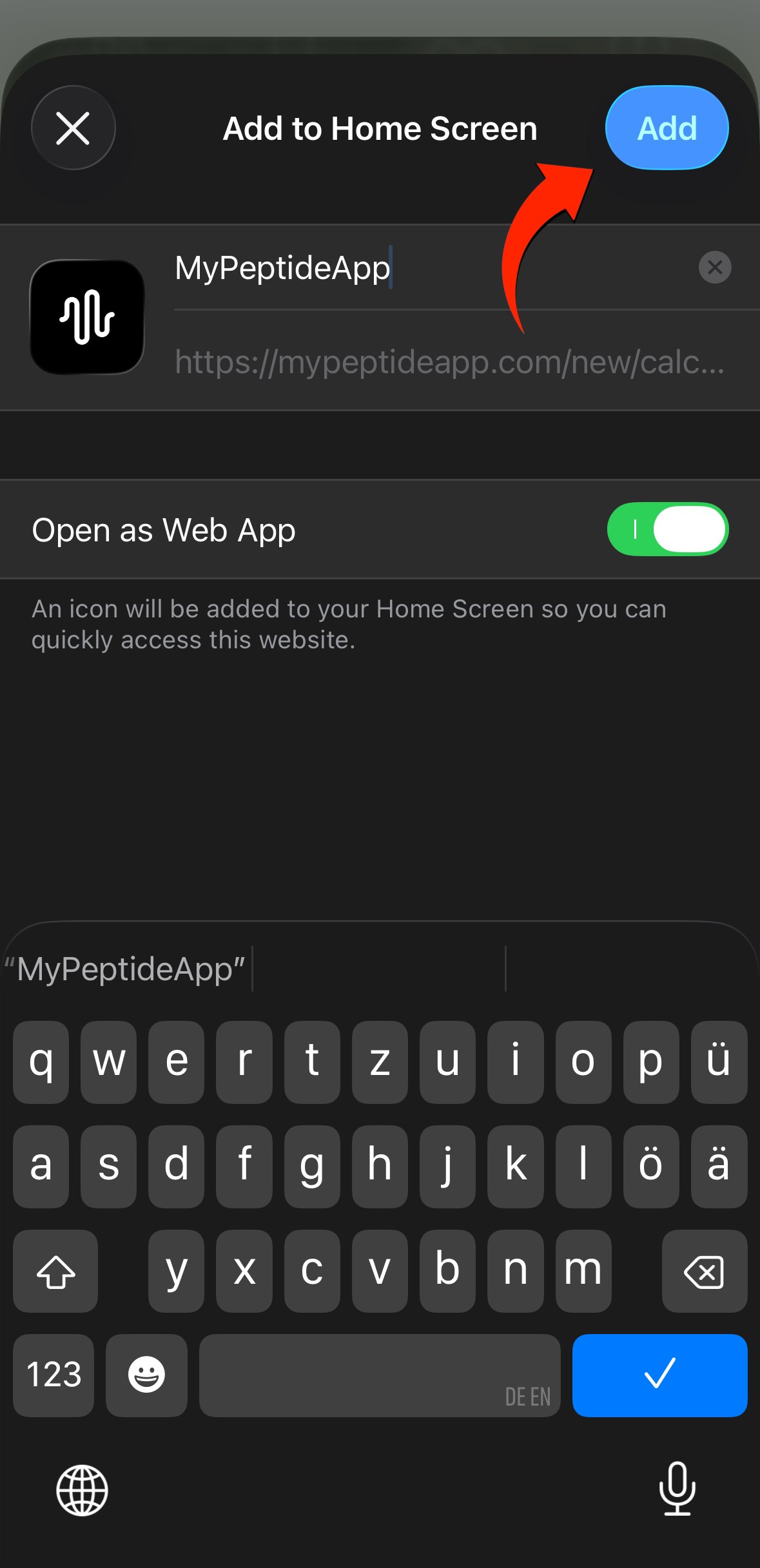
After installing, always open MyPeptideApp from the home screen icon — not from Safari. This ensures the full-screen app experience with no browser bars.
Open in Chrome & Tap the Menu
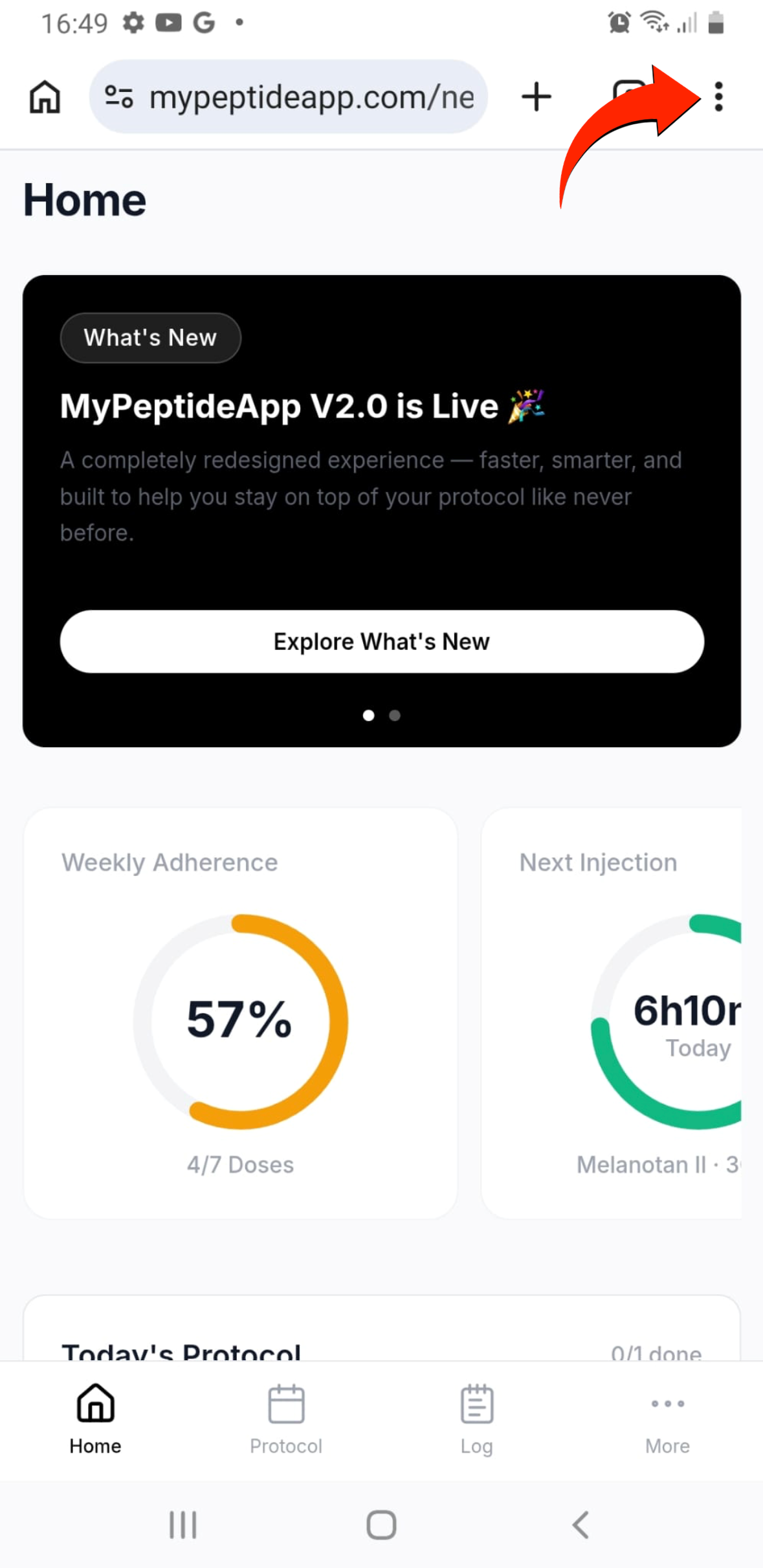
Visit mypeptideapp.com using Google Chrome on your Android device. Then tap the three-dot menu (⋮) in the top-right corner. Samsung Internet and Edge also support installing web apps.
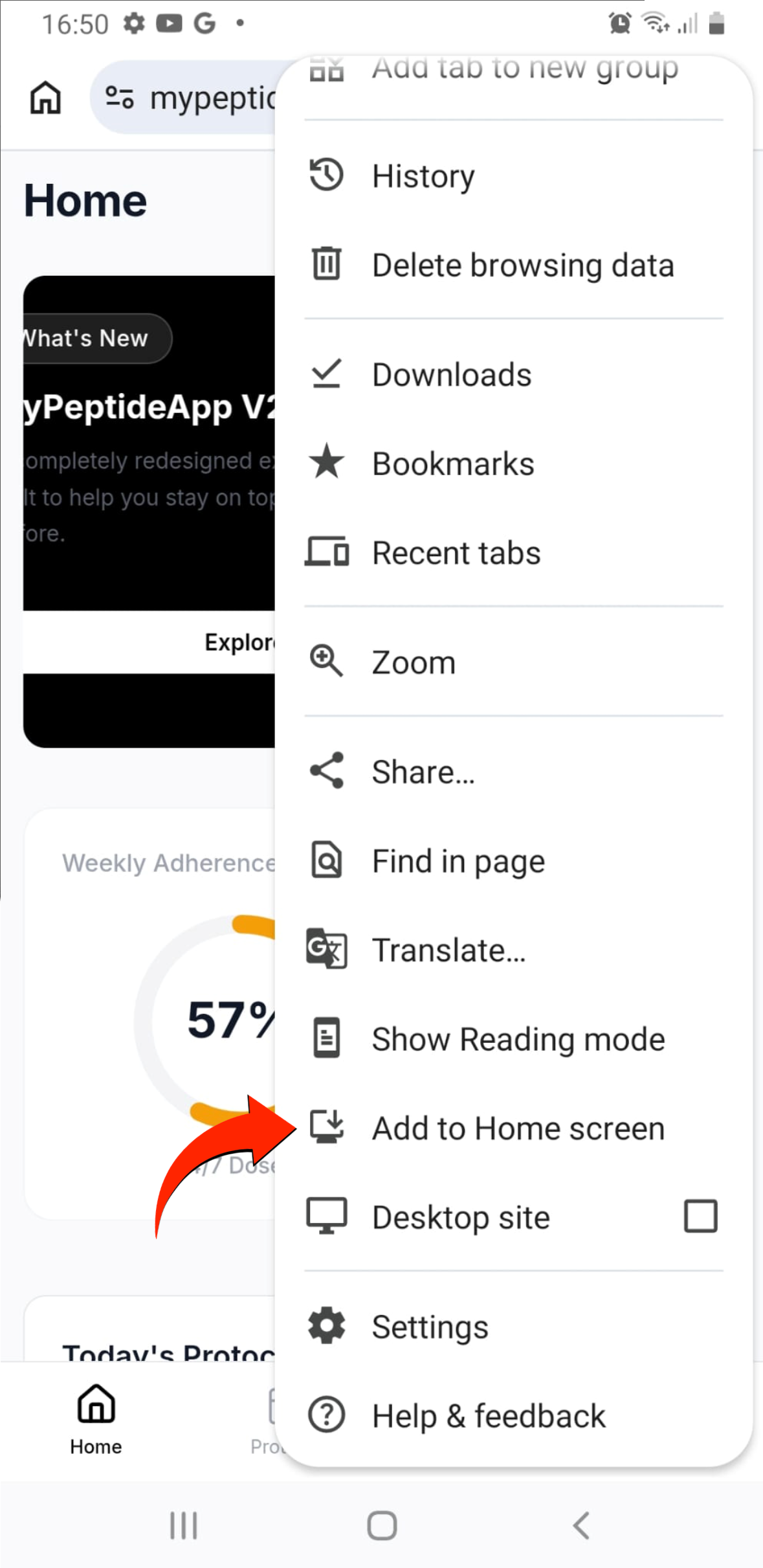
Select "Add to Home Screen"
In the menu, scroll down and tap "Add to Home screen". The exact position may vary depending on your Chrome version.
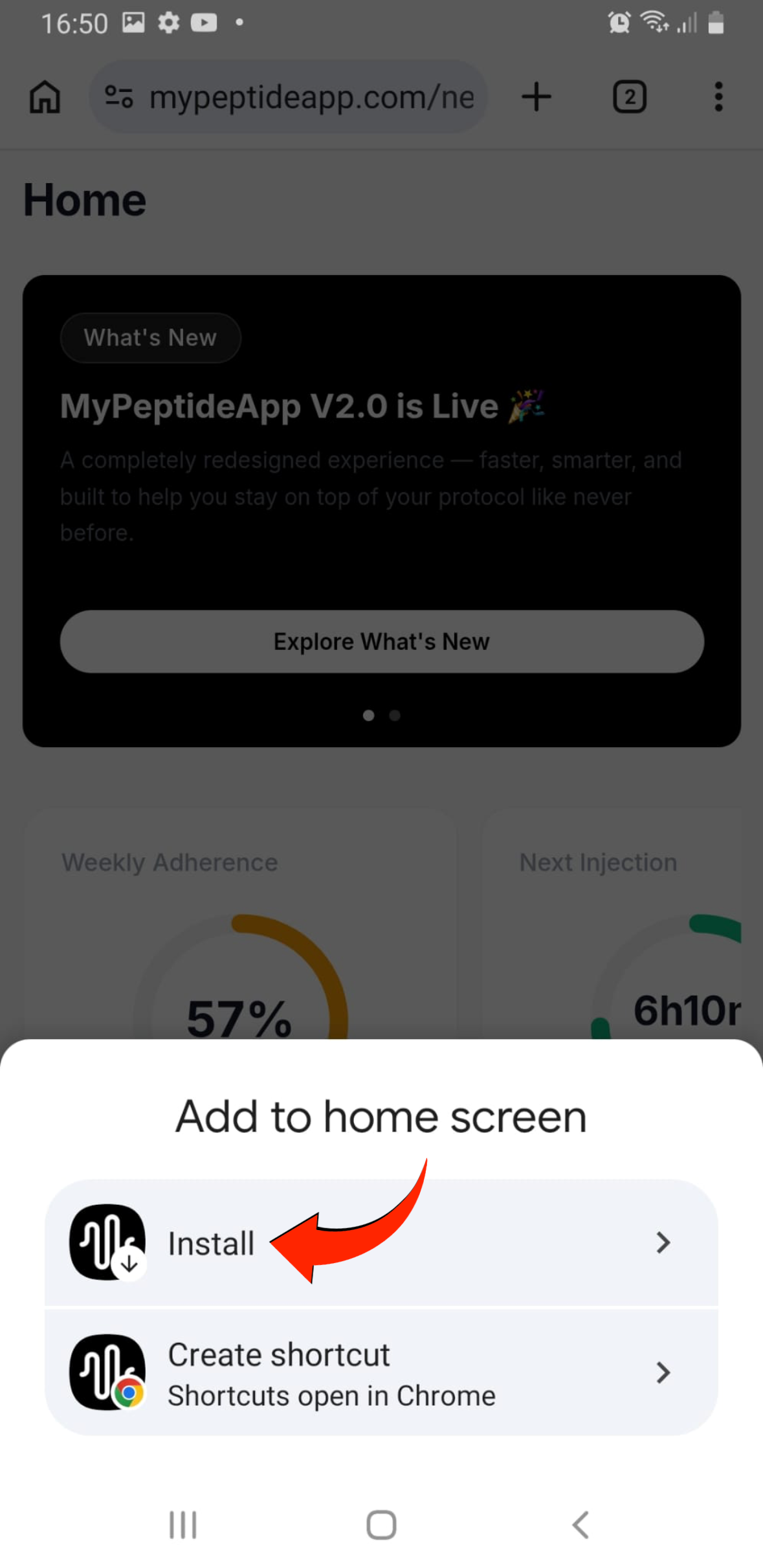
Tap "Install"
A bottom sheet will appear with two options. Tap "Install" to install MyPeptideApp as a full app on your device.
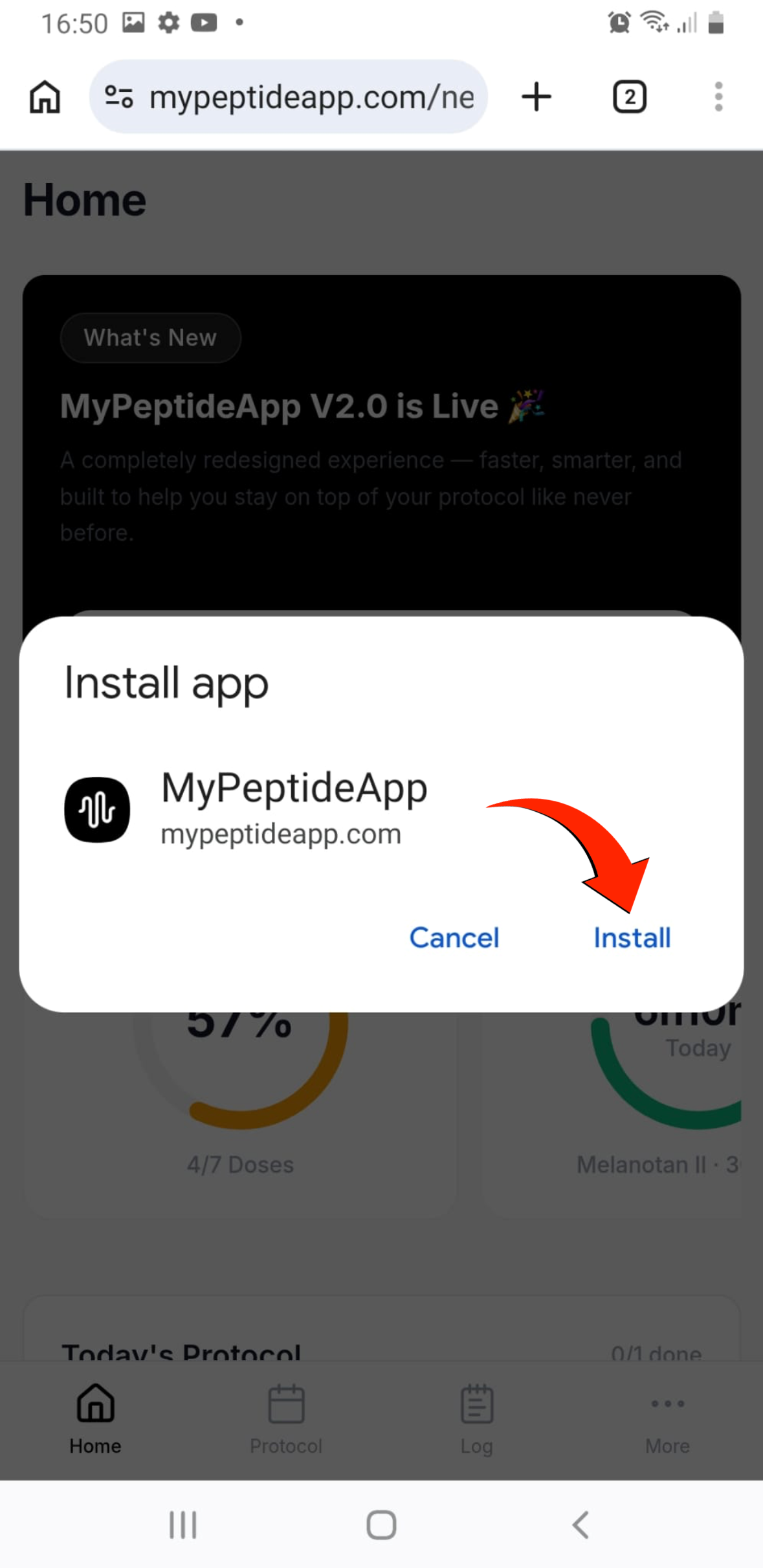
Confirm the Installation
A confirmation dialog will pop up showing the app name and URL. Tap "Install" to confirm. MyPeptideApp will be added to your home screen and app drawer — ready to use.
On Android, installed web apps appear in your app drawer and can be managed like any other app — including notifications and storage settings.